

How to connect
Step 1 : Setup an Import API integration in Stitch.
PlanetScale’s Stitch tap outputs records and metadata to stdout so that thehttp tap can import them into Stitch via Stitch Import API.
1
Sign up for a StitchData account
2
Once you’ve signed up, create an Integration by clicking on Add Integration.
3
On the marketplace screen, type in import to narrow the list down to the Import API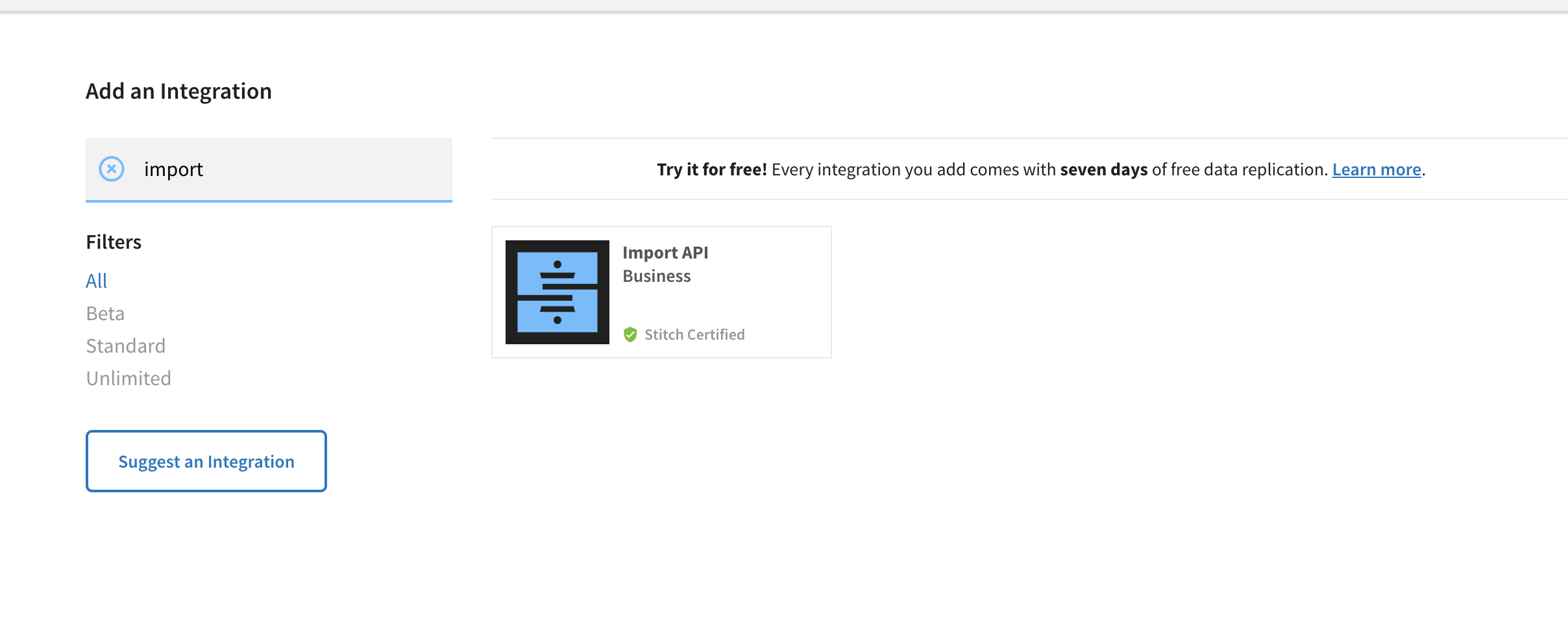
4
On the next screen, configure your integration name and destination.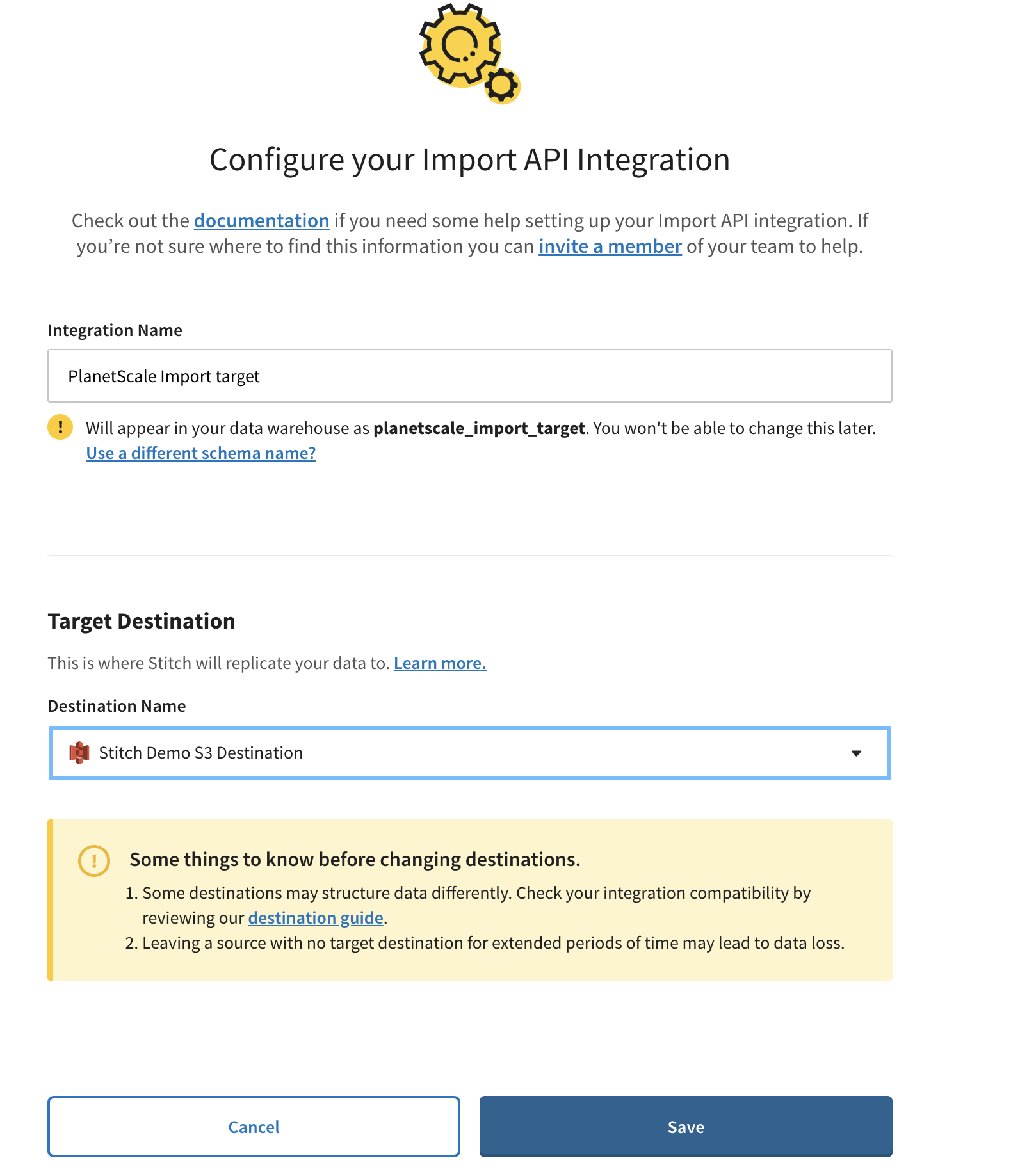
5
Once the integration is created, save the access token for use with the PlanetScale tap.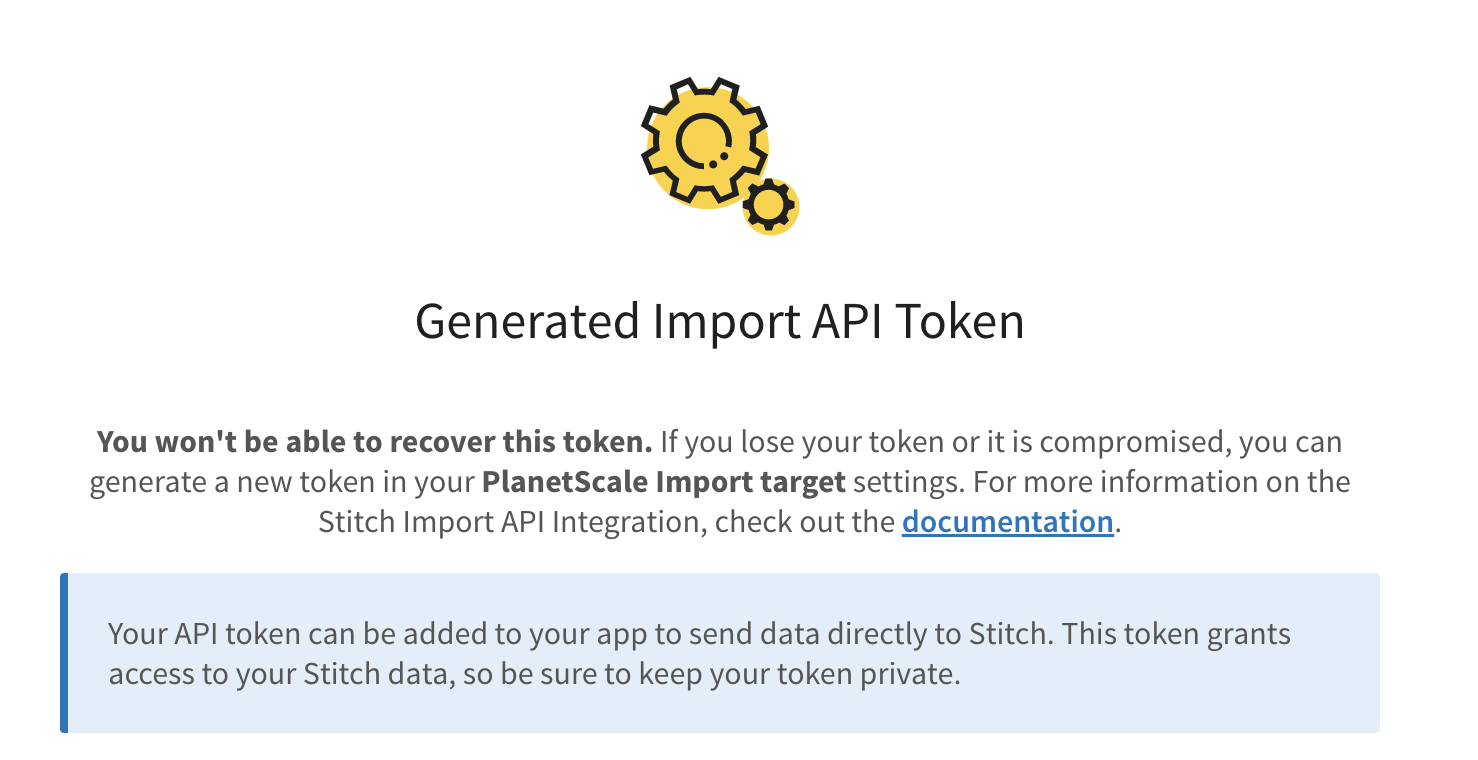
Step 2 : Configure the PlanetScale Stitch Tap
In this step, we will connect your PlanetScale database to the PlanetScale Singer Tap.1
Click on the database and branch you want to connect to.
2
Click “Connect”, and select “Stitch source” from the “Connect with” dropdown.
3
Leave this tab open, as you’ll need to copy these credentials shortly.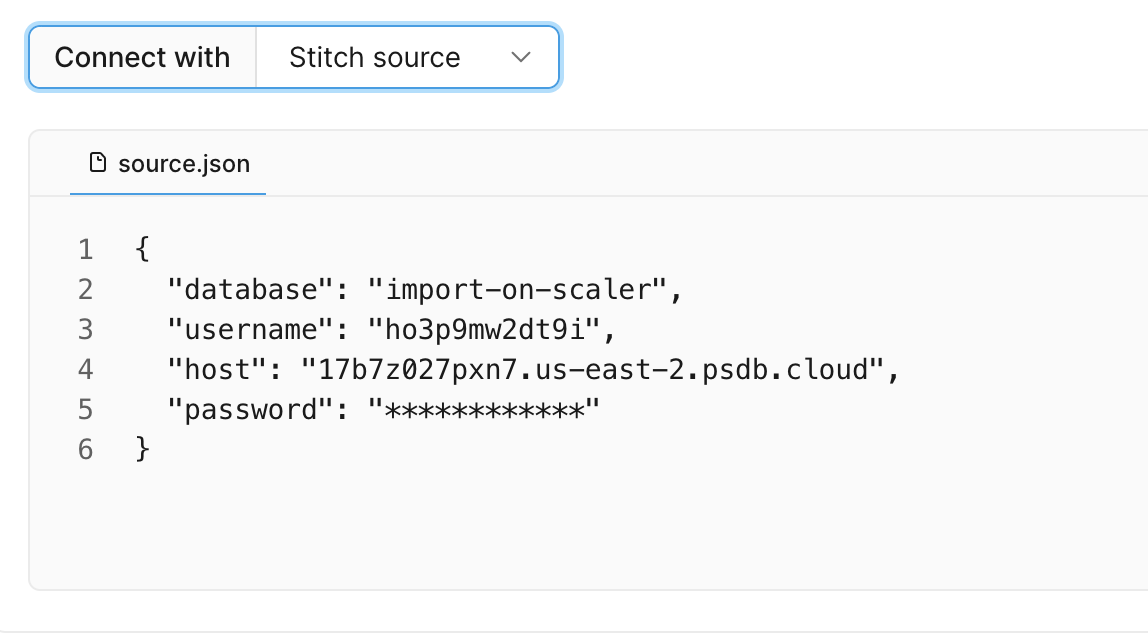
4
Copy the contents of
source.json as a file on your local file system, and save it as source.json. This will now act
as the PlanetScale source config when connecting the PlanetScale Stitch Tap to your database.Step 3: Run the PlanetScale Stitch Tap
1
Install the PlanetScale Singer tap by running:
2
Install the PlanetScale Http tap by running
3
Save the schema for your PlanetScale database.
4
The
schema.json file you saved in the previous step is a JSON document
that describes all tables & columns available in your PlanetScale database. By default, no tables/columns are selected.
You can select a column or table by setting its selected property in the table’s metadata element in the JSON document to be true.
Here’s an example of selecting the dept_no property in a table.5
Sync your PlanetScale database to Stitch by running the following command:
6
You should see an output similar to this:
7
Any state outputted by the PlanetScale Tap will be saved and you can look at the logs for the location.
Here is an example of outputted state:
8
In this example, you should see that Stitch loaded 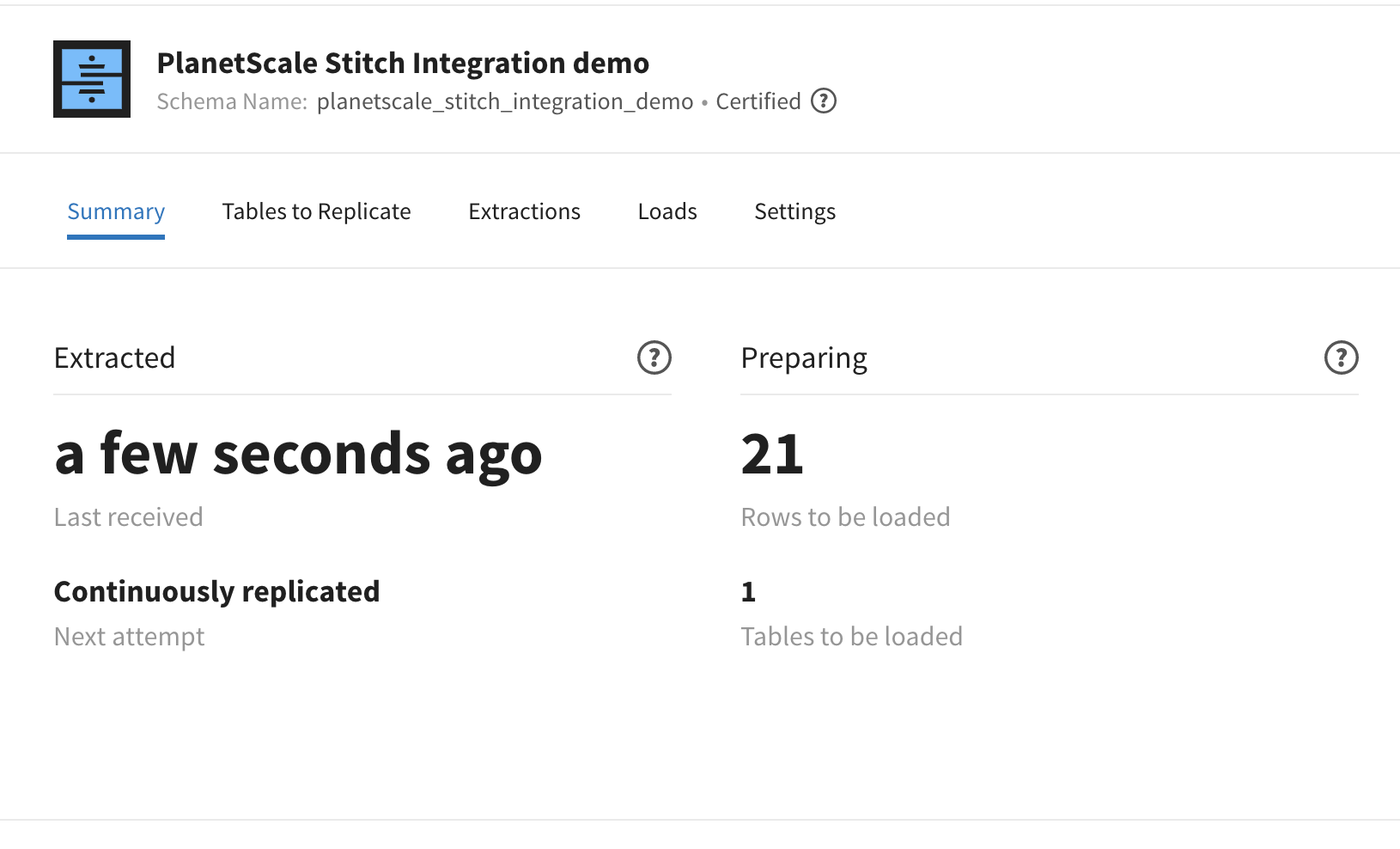
21 records to be replicated.9
To incrementally sync from this last sync position, pass the path to last saved state in step 7 as the
--state argument when you run sync.